Sharing
Every Kuren employee has an email address (for example,jeff@agent.kuren.ai). You can share your Google calendars with your employees through the Google Calendar web app, just like you would with a human employee. You can browse shared calendars in the Calendars section in the dashboard.
Share the calendar in Google Calendar
-
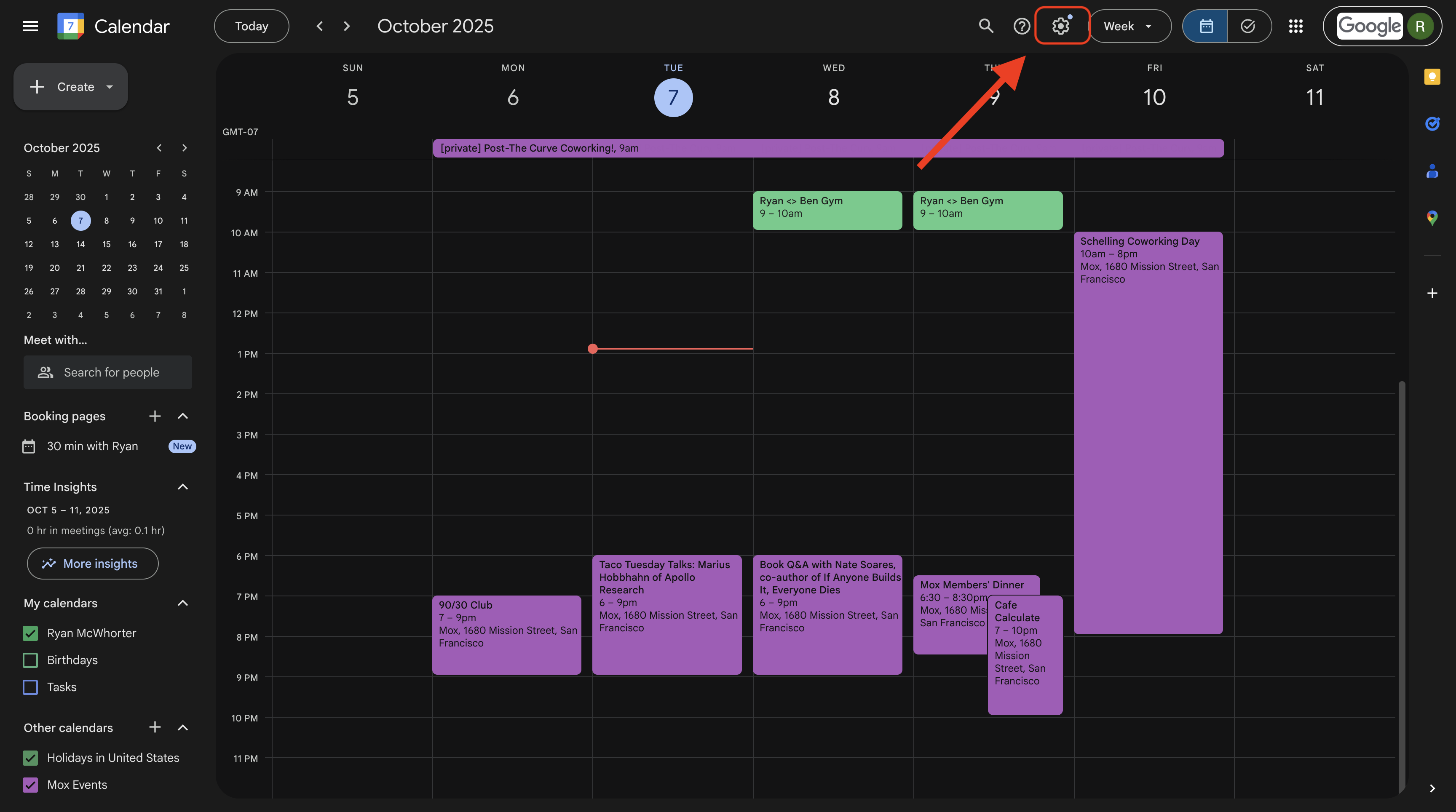
Visit https://calendar.google.com, go to Settings, and pick the calendar that you want to share.
-
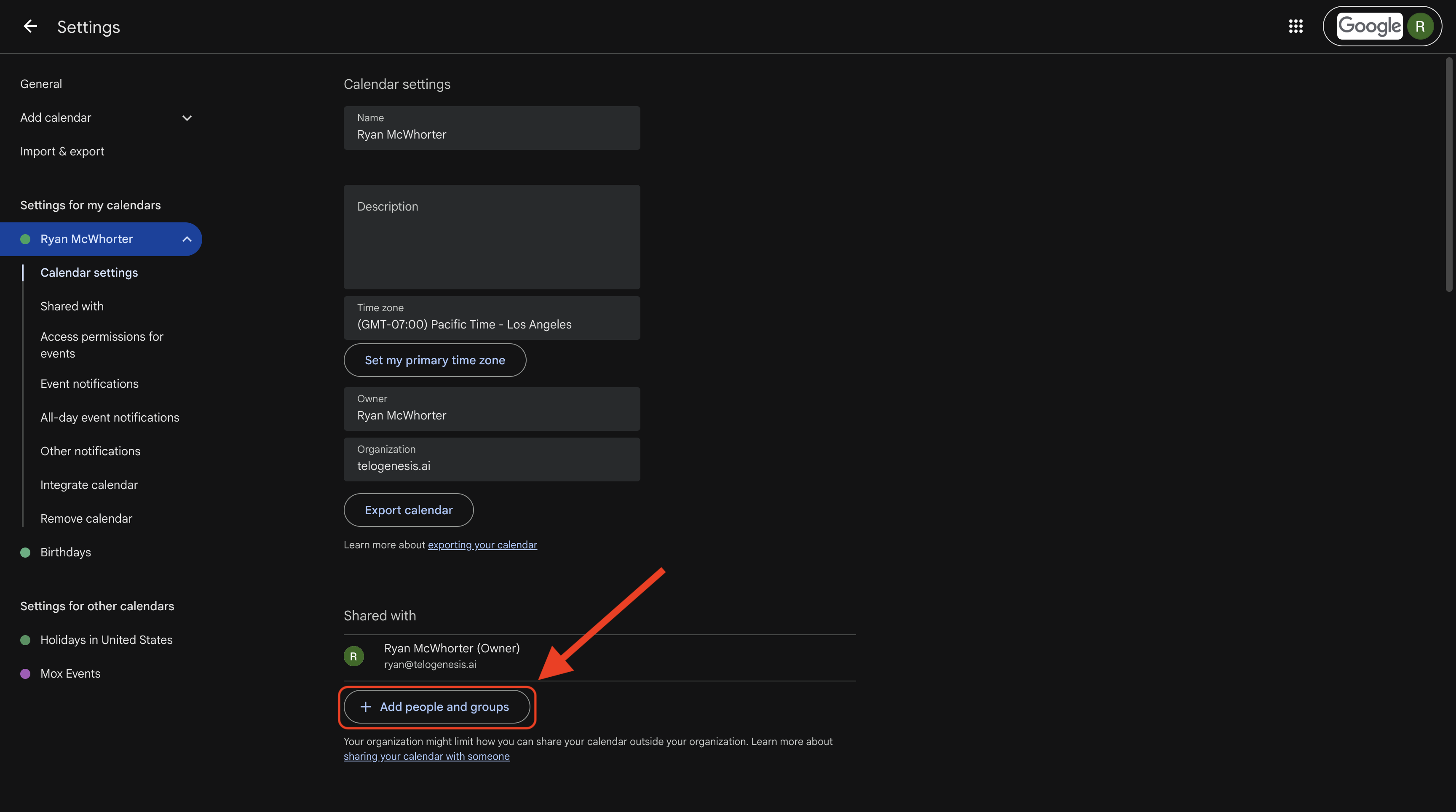
Click on Add people and groups.
-
Share your calendar with your employee, using whatever permissions level you think is appropriate.
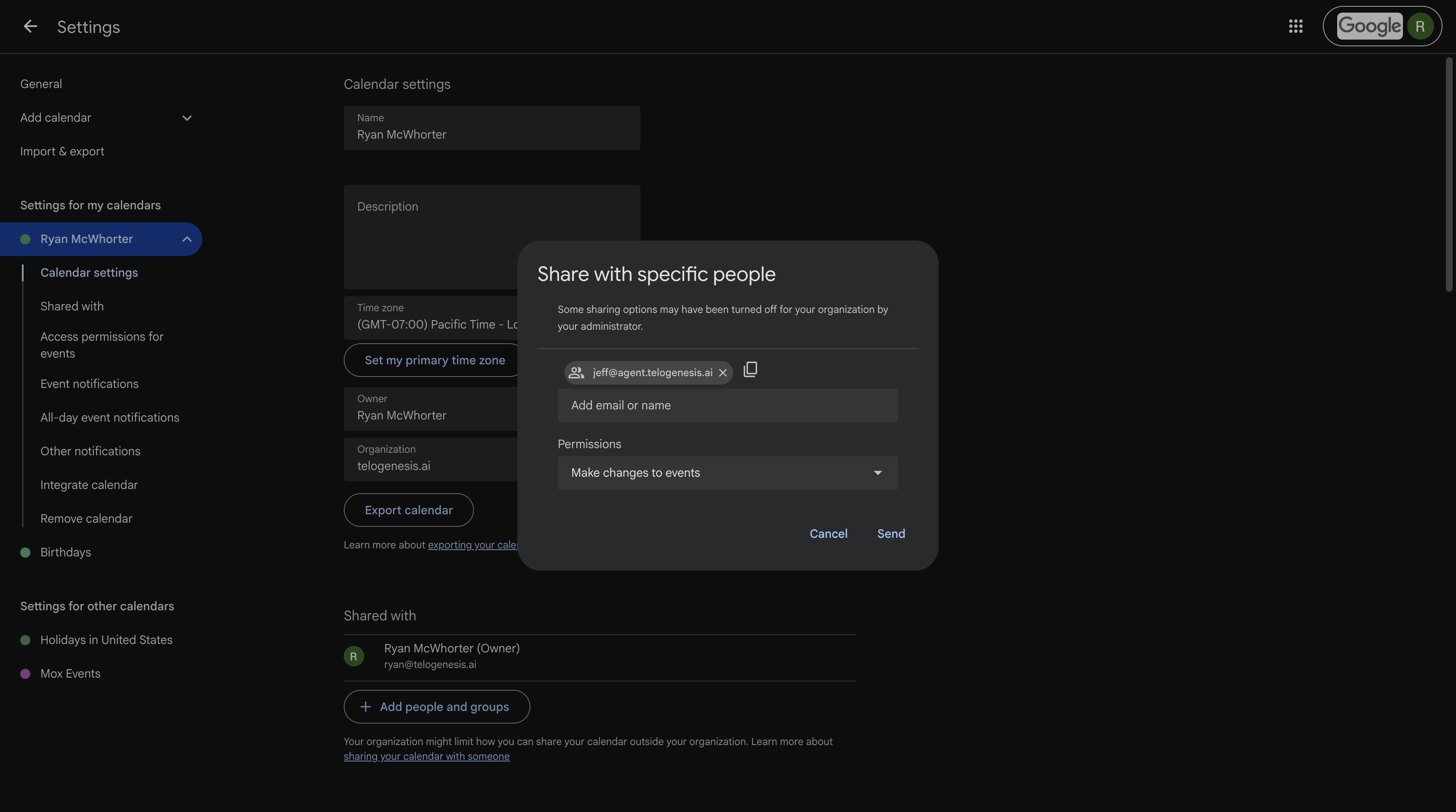
- Click Send to send the sharing invitation to your employee.
Permissions
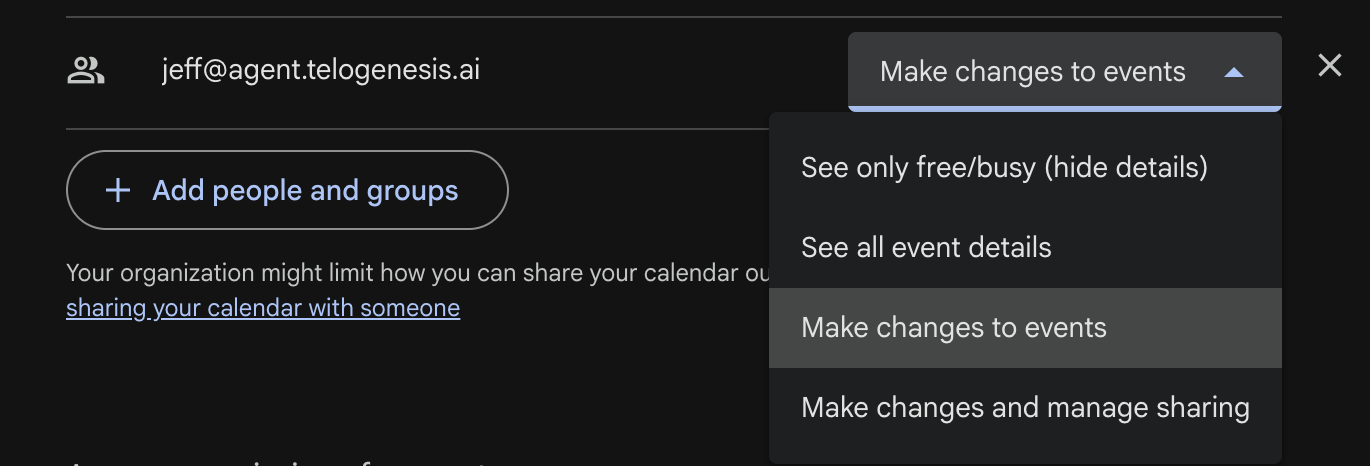
Google providers four permission levels for calendar sharing. We support all of them. They are:- See only free/busy (hide details)
- See all event details
- Make changes to events
- Make changes and manage sharing
Prerequisites
- The employee must have the
google_calendartool category enabled (check the Tool Categories section, in the Employee Tab).